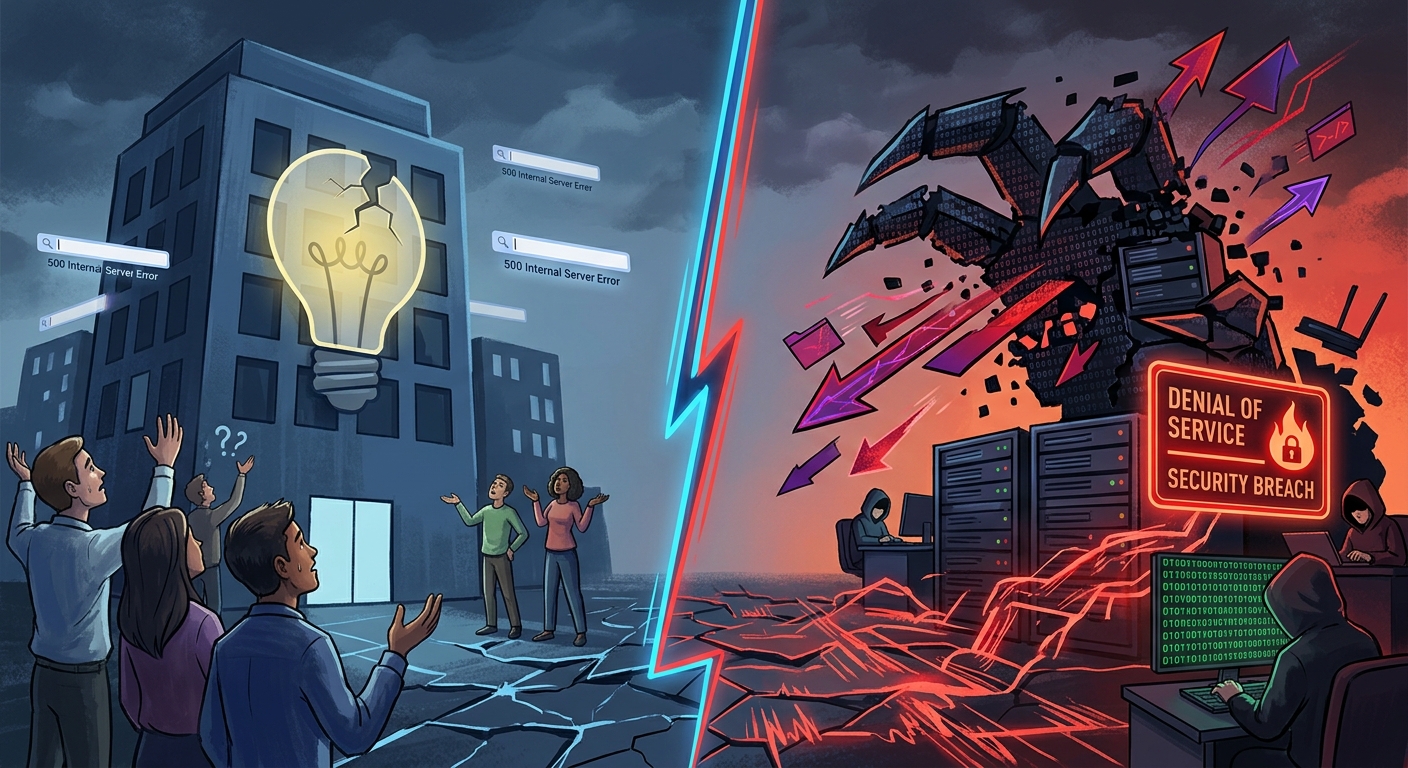
The bank app keeps spinning. Your email client throws a connection error. A business tool your whole team relies on has gone completely silent. Before your mind races toward the worst possible explanation, pause. The reason a familiar site stops loading is almost always completely ordinary.
What to Know Before You Panic
- Before assuming the worst, check whether the site is down for everyone using a free status checker.
- If the site loads for others but not for you, the cause is almost always a local network hiccup rather than a security threat.
- If you spot unexpected login alerts or suspicious emails alongside the problem, treat it as a potential security incident right away.
Start With the Simplest Explanation First
Servers go down all the time. Hosting providers have scheduled maintenance windows. A botched software update gets pushed and breaks a site for a few hours. A sudden spike in traffic overwhelms a service at peak time. None of these events have anything to do with you, your account, or your security.
The very first thing to do when a familiar site won't load is confirm whether the problem is global. Visit is it down right now and type in the site's address. If the checker reports the site as down or unreachable, the problem is on their end, not yours. Your only job is to wait it out and try again later.
This single step takes about fifteen seconds and saves you from unnecessary password changes, pointless support calls, and a lot of misplaced anxiety. Most of the time, the story ends right here.
When the Checker Says the Site Is Up
Here is where things get more interesting. You run the check, and the result confirms the site is responding normally for everyone else in the world. Yet it still won't load for you. This situation is more common than most people realize, and it usually has an unexciting cause.
Common reasons a site fails to load for one person while working for everyone else include:
- Your internet provider is experiencing a routing problem that prevents your connection from reaching that particular server.
- Your home router or device is holding onto a stale DNS cache entry and pointing you to an old or invalid address.
- A browser extension, firewall, or security tool on your device is silently blocking the request.
- The site has temporarily restricted access from your region or IP range.
- Your device's local hosts file contains a manual entry that overrides the correct address.
These are boring technical problems. Most of them resolve on their own within hours. You can often speed things up by restarting your router, clearing your browser cache, or trying the site in a fresh browser with no extensions active.
Ruling Out Local Problems Before You Worry
The fastest way to isolate the problem is to test from a completely different setup. Take your phone off Wi-Fi and load the site using mobile data. If it loads immediately over cellular but not on your home network, the issue is your router or your ISP connection, nothing more sinister than that.
Also try a different browser on the same device. Chrome, Firefox, and Safari each handle caching and extensions differently. If the site loads in one browser but not another, you have a browser-specific problem to address rather than a network or security issue.
If the site fails on every device, on every network you have access to, and the status checker still reports it as up, that is an unusual situation worth examining more closely.
The Scenario That Actually Warrants More Attention
Imagine you have confirmed the site is up globally, your own connection works fine on other services, and yet this one specific site consistently refuses to load for you. At that point, a few less common explanations come into play.
One is a DNS hijack at the router or ISP level. Traffic intended for the real site gets silently rerouted. The redirect might land you on a blank error page or, in more targeted cases, on a convincing imitation of the real site designed to capture your login credentials.
Another explanation is an account-level restriction. Some platforms automatically lock out accounts flagged as compromised. If someone signed into your account from an unfamiliar location or device, the platform may have frozen your access as a precaution while it investigates. You would not necessarily receive a notification before that lockout takes effect.
How a Phishing Redirect Looks in Practice
Phishing redirects are built to be invisible. You type the correct address. The page loads. The padlock icon appears in your browser bar. Everything looks right. But you are on a copy of the real site, not the real thing.
A few details can expose a fake site. The URL in your address bar might contain a subtle typo: a zero where there should be the letter O, an extra hyphen, or a different domain extension than the one you normally see. The page might feel slightly sluggish. Small design elements could be off, a different font weight, a marginally wrong logo shade, missing footer links.
The most reliable signal comes after you submit your password. A phishing page typically forwards you straight to the real site right after you enter your credentials, so you assume you just mistyped something and log in again without questioning it. If you find yourself on the real site with no clear memory of how you got there, treat that as a red flag. Published phishing awareness resources from federal cybersecurity agencies document this exact redirect technique as one of the most effective tactics in widespread use today.
Reading the Signs: Outage or Security Problem?
| Indicator | Likely a Routine Outage | Possible Security Issue |
|---|---|---|
| Status checker result | Site reported as down | Site reported as up |
| Other users affected | Yes, widely reported | No, only your access |
| Other websites load normally | Yes | Yes |
| Unexpected login alerts in inbox | None | Present and unexplained |
| URL in address bar | Looks correct | Possibly altered or off |
| Behavior after login attempt | Normal page or error screen | Unexpected redirect or instant auto-login |
Steps to Take If You Suspect Something Serious
If several indicators above point toward a security problem rather than a plain outage, act methodically. Calm action beats hurried action every time.
- Stop logging in from your current device. If a redirect is in play, entering credentials again compounds the damage.
- Check your email for login alerts from the service. Most platforms automatically send a notification when a new device or unfamiliar location signs in. Look carefully at anything from the past 24 to 48 hours.
- Scan your inbox for password reset requests you never initiated. An unsolicited reset email is a strong signal that someone attempted a takeover.
- Switch to a different, trusted device. Go directly to the site by typing the address manually into the browser. Do not click any links from emails, search results, or chat messages.
- Change your password from that safe device. Use a long, unique passphrase. A password manager makes generating one effortless.
- Turn on two-factor authentication if it is not already active. This single step makes a stolen password almost useless to an attacker.
- For financial accounts, call the official number directly. Use the number printed on your card or statement, not a number from a search result or an email.
Building a Habit That Catches Problems Early
The clearest way to spot unexpected account activity is to have a normal baseline to compare against. Most people never check their account activity logs until something goes wrong. A monthly habit of reviewing recent logins takes about two minutes and catches problems long before they cause visible disruptions.
Storing your critical site addresses in a password manager removes a quiet risk you might not have considered. When you type a URL by hand or follow a link from a search result, you might land somewhere slightly wrong without noticing. A password manager takes you to the saved, verified address every time, bypassing that risk entirely.
Take ten minutes to review notification preferences across your most important accounts. Some platforms send login alerts by default. Others require you to manually enable that setting. Knowing that you will be notified when something changes means you are never left guessing after the fact.
When a Blank Screen Actually Has Something to Tell You
A site that won't load is rarely a sign of danger. Run the status check first. Test from a second device on a different network. Clear your cache. Nine times out of ten, you will solve the mystery in under five minutes and find yourself staring at a perfectly ordinary maintenance page.
The remaining cases are worth understanding, not fearing. A site that is up for everyone else, a URL that looks slightly wrong, an email you never requested, a password prompt you do not remember triggering. These details, taken together, form a picture worth acting on. The decision tree is straightforward: check the obvious explanations first, then follow the evidence wherever it leads. A calm, methodical approach beats guesswork every single time, and the steps are genuinely within reach for anyone.
Continue reading
- How to Check If Your Browser Is Leaking Your Data Right NowThe previous field note.