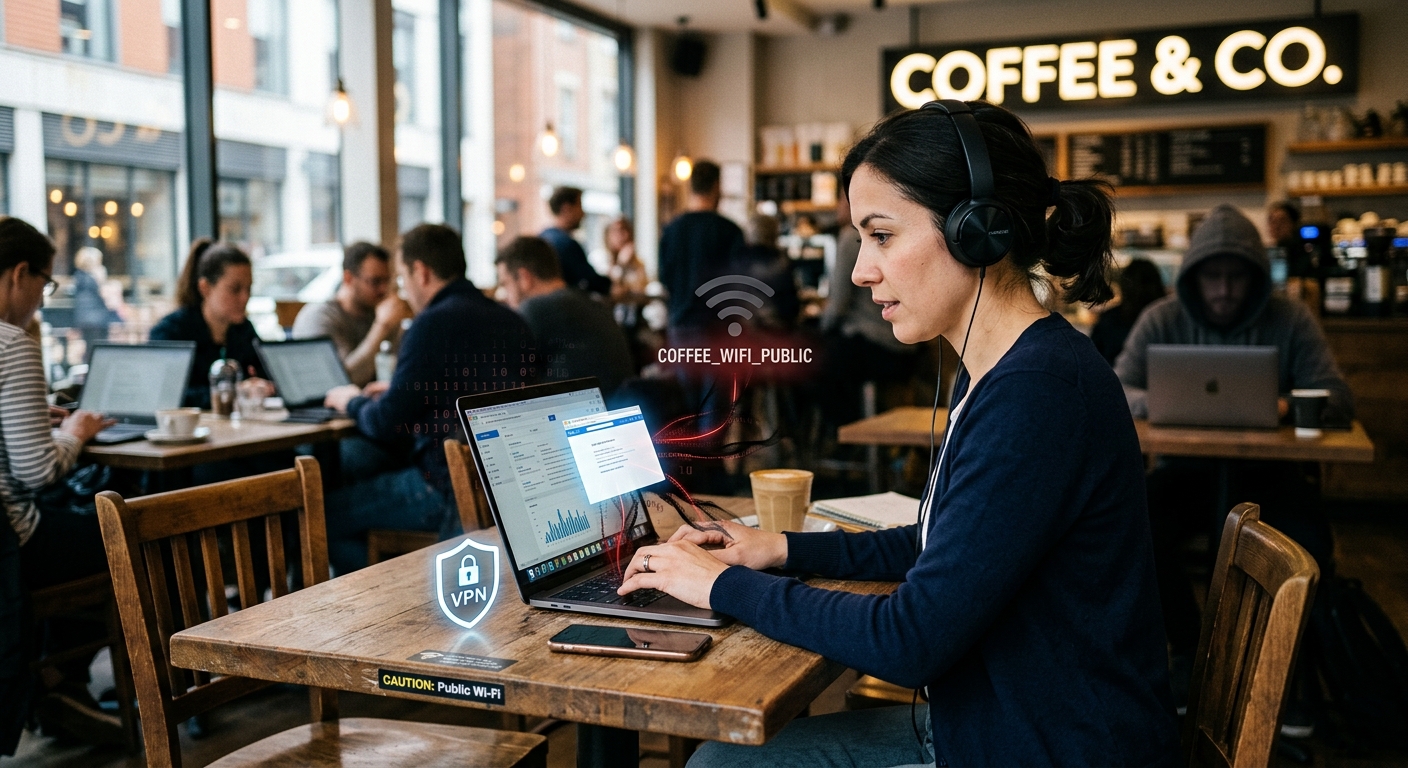
You sit down at a coffee shop, open your laptop, and connect to the free Wi-Fi without a second thought. You check your email, skim a few invoices, maybe pull up your bank account. Nobody stopped you. Nobody asked for a password. And that is exactly the problem.
Public Wi-Fi is one of those conveniences that feels harmless right up until it isn't. For small-business owners and remote workers who treat coffee shops, airports, and hotel lobbies as second offices, the risk is real and consistently underestimated. The good news is that protecting yourself does not require an IT department or a degree in computer science. It requires understanding what actually happens on these networks and making a few deliberate choices before you connect.
Key Threats at a Glance- Anyone nearby can create a fake Wi-Fi network that looks completely legitimate to your device
- Unencrypted connections expose login credentials and session data to others on the same network
- Session hijacking lets an attacker take over an active login without ever knowing your password
- A VPN encrypts your traffic before it leaves your device, significantly reducing your exposure on open networks
- HTTPS protects page content but does not hide where you are going or who you are online
The Real Danger on a Shared Network
When you connect to a public Wi-Fi network, you share a communication channel with every other person on that network. The router at the coffee shop is routing packets for dozens of devices simultaneously. If someone on that same network decides to listen in, they can.
This is not a theoretical attack. The tools needed to intercept traffic on a shared network have been freely available for years. A motivated attacker with a laptop and basic technical knowledge can position themselves between you and the router in what security professionals call a man-in-the-middle attack. They intercept your requests, forward them on, and read whatever passes through. You never notice anything unusual. The page loads. The email sends. Everything appears to work normally.
Consumer advisories have long flagged open network risks as a persistent source of credential theft and session interception, precisely because users consistently underestimate how open the connection actually is.
Three Attacks That Target Public Wi-Fi Users
Most of the damage that happens on public networks falls into one of three categories. Knowing what each one looks like makes it far easier to recognize the conditions that leave you exposed.
- Rogue hotspot (evil twin): An attacker creates a network with a name that closely mimics a legitimate one. You might see "Airport_Free_WiFi" right beside the real "Airport_FreeWiFi." You connect to the fake network, and all your traffic runs through the attacker's device before reaching the internet. Your browser shows no warning. Everything appears to function normally.
- Unencrypted HTTP traffic: Any website that still serves pages over plain HTTP sends your data in readable text. If you submit a form, enter login credentials, or click through a payment page on an HTTP site, that data travels across the network where anyone listening can read it. Older and smaller sites still use HTTP more often than most people expect.
- Session hijacking: Even on HTTPS sites, some web applications pass session cookies that identify you as logged in. If an attacker captures that cookie, they can impersonate your active session without knowing your password at all. This was trivially easy on open networks for years and remains a real concern on poorly configured sites today.
What HTTPS Actually Covers
Most browsers now show a padlock icon next to the address bar when a site uses an encrypted connection. That padlock means the content of the page is protected in transit. An observer on the same network cannot read the body of the page, see what you typed into a form, or intercept what your bank sends back to your browser.
What HTTPS does not hide is your metadata. The domain you are visiting remains visible to anyone watching the local network, even if the specific page content is not. Your device's IP address, the timing of your requests, and the overall pattern of your traffic are all observable. That information alone can tell a careful observer quite a bit about your activity.
HTTPS is a solid baseline and not a complete solution. It closes the most obvious gap but leaves others open, particularly on networks where someone is actively monitoring the flow of data.
When Using a VPN Changes the Equation
A VPN routes your traffic through an encrypted tunnel before it leaves your device. Anyone watching the local network sees only encrypted data going to a VPN server. They cannot see which sites you are visiting, what you are sending, or what responses you are receiving.
If you have never used one before, it helps to start with a clear explanation of what is a VPN before committing to a paid service. The technology is genuinely useful but frequently oversold, and understanding the basics helps you choose wisely and set appropriate expectations.
Here is the honest tradeoff. A VPN makes a meaningful difference in two situations. The first is when you are connecting to a network you do not trust, particularly in airports, hotels, or cafes. The second is when you are accessing sensitive accounts or transmitting business data over that connection. For routine browsing on a trusted home or office network, a VPN adds latency without adding much protection.
A VPN does not make you anonymous. It shifts trust from your local network to the VPN provider. Choose a provider with a clear, independently audited no-logs policy. Free VPN services frequently monetize your data in ways that defeat the entire purpose of using one.
Connection Security at a Glance
| Scenario | What Is Protected | What Is Still Exposed | Risk Level |
|---|---|---|---|
| Open public Wi-Fi, no HTTPS | Nothing | All content, credentials, and metadata | High |
| Open public Wi-Fi with HTTPS | Page content and form data | Domain names, IP address, session timing | Medium |
| Open public Wi-Fi with HTTPS and VPN | Content and metadata from local observers | Traffic visible to the VPN provider | Low |
| Mobile data (LTE/5G), no Wi-Fi | Content via HTTPS, no local eavesdropping | Carrier-level metadata | Low to Medium |
Staying Safe Without a Dedicated IT Person
Most small-business owners are their own IT department. That is the reality, and it is worth accepting plainly. The goal is not to replicate enterprise-grade security. The goal is to close the gaps that cause the most damage with the least possible effort on your part.
Work through this checklist before connecting at any public location.
- Verify the network name with staff. Ask an employee for the exact Wi-Fi network name before connecting. Rogue hotspots depend entirely on you making an educated guess based on what looks plausible.
- Activate your VPN before opening any apps. Connect to the network first, then turn on the VPN before your browser or email client opens. Many apps sync data in the background the moment they detect an available connection.
- Check for HTTPS on any page that asks for a login. Look for the padlock icon in the address bar. If it is missing on a page that wants your credentials, close the tab and do not proceed.
- Disable auto-join for public networks. Both iOS and Android allow you to turn off automatic reconnection to previously saved networks. This prevents your device from silently connecting to a rogue hotspot that shares a name with a network you have used before.
- Use your phone as a personal hotspot for sensitive tasks. Accessing financial accounts, HR systems, or client data through mobile data is measurably safer than any public Wi-Fi, even with a VPN running.
- Log out of accounts when you are finished. Closing a browser tab is not the same as ending your session. Logging out properly invalidates the session cookie that may have been captured while you were on the network.
Warning Signs That a Network May Not Be Legitimate
You cannot always confirm whether a network is trustworthy before you connect. Certain signals should raise your suspicion before you send anything sensitive through the connection.
- The network name is slightly different from what you expected, with an extra space, a number, or an underscore that was not there before
- The connection has no password but shows unusually strong signal strength, which may indicate a device positioned nearby rather than a distant router
- Your browser displays certificate warnings after connecting, even on sites you visit regularly and trust completely
- Pages load abnormally slowly or redirect through unexpected addresses before reaching the content you requested
- The network prompts you to install software, accept a certificate, or update an app before granting access to the internet
Any single one of these signals is worth taking seriously. If two or more appear at the same time, disconnect and switch to mobile data without delay.
One Thing to Do Before Your Next Session
Most people read articles like this one, agree with the reasoning, and then connect to the next public Wi-Fi the exact same way they always have. The gap between knowing and doing is precisely where the risk lives.
Here is the single concrete action worth completing before you close this tab. Download a reputable VPN app and configure it to activate automatically on untrusted networks. Most paid VPN services offer this setting directly in their preferences. The cost comes to roughly the price of one coffee per week, and once configured, your traffic is protected before you have a chance to forget about it.
If you manage a small team, write this into a short policy rather than keeping it as a personal habit. One sentence stating that all staff must use a VPN on any public network gives your employees something specific and clear to follow. You do not need a formal IT department to write that sentence. You just need to write it once and share it with the people who work with you.
Public Wi-Fi is not going anywhere. Neither are the people who take advantage of it. The difference between an easy target and a harder one most often comes down to whether you have spent ten minutes setting up a tool that runs quietly in the background from that point forward. That is a trade worth making.
Continue reading
- How to Build a Password System That Actually Holds UpThe previous field note.